
What really happens after you type a URL and press Enter?
Most of us never think about it. The page just… appears.
But behind that single click, your browser performs many smart steps in just a few milliseconds.
Think of this as a behind-the-scenes story of your browser.
1. What Is a Browser (Beyond “It Opens Websites”)?
A browser is not just a website opener.
A browser is a translator + painter + manager,it does all this work :
It fetches data from the internet
Understands HTML, CSS, and JavaScript
Decides how everything should look
Draws pixels on your screen
it can be said as :A browser converts code into something humans can see and interact with.
Examples of browsers: Chrome, Firefox, Edge, Safari.
2. Big Picture: Main Parts of a Browser
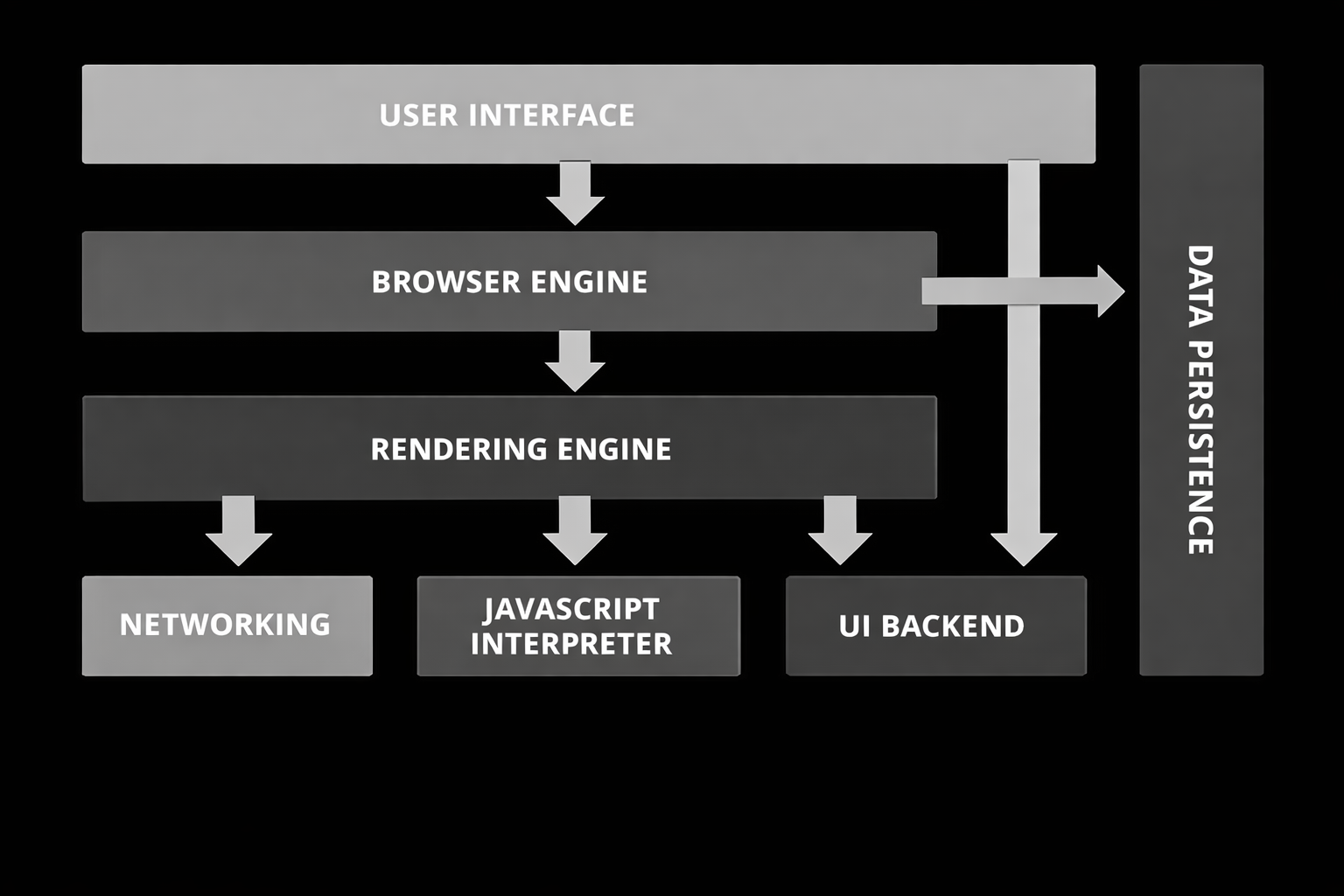
At a high level, a browser is made of multiple components working together, like a team.
1. User Interface (UI)
This is the part you see and touch:
Address bar
Tabs
Back / forward buttons
Reload button
Bookmarks
When you type a URL or click a link, the UI sends that request inside the browser.
2. Browser Engine (The Coordinator)
Think of this as like the manager.
It takes instructions from the UI
Decides what needs to happen next
Talks to networking, rendering engine, and JavaScript engine
It doesn’t draw anything itself — it controls the flow.
Example of Browser Engines:
Blink (used in Google Chrome & Microsoft Edge)
Gecko (used in Mozilla Firefox)
WebKit (used in Safari)
3. Rendering Engine (The Painter )
The rendering(display) engine:
Reads HTML and CSS
Builds visual structures
Draws the page on your screen
It Turn code into pixels,
4. JavaScript Engine
This engine:
Reads JavaScript
Executes logic
Changes the page dynamically
Examples of JavaScript Engines
V8 → Used in Google Chrome & Node.js
SpiderMonkey → Used in Firefox
JavaScriptCore → Used in Safari
For example:
document.getElementById("btn").innerText = "Clicked";
The JS engine runs this code and updates the page.
5. Networking
This part handles internet communication.
Its job:
Find the server
Send requests
Receive HTML, CSS, JS, images, fonts
Without networking componet , the browser would have nothing to display.
3. Full Flow: From URL to Pixels :
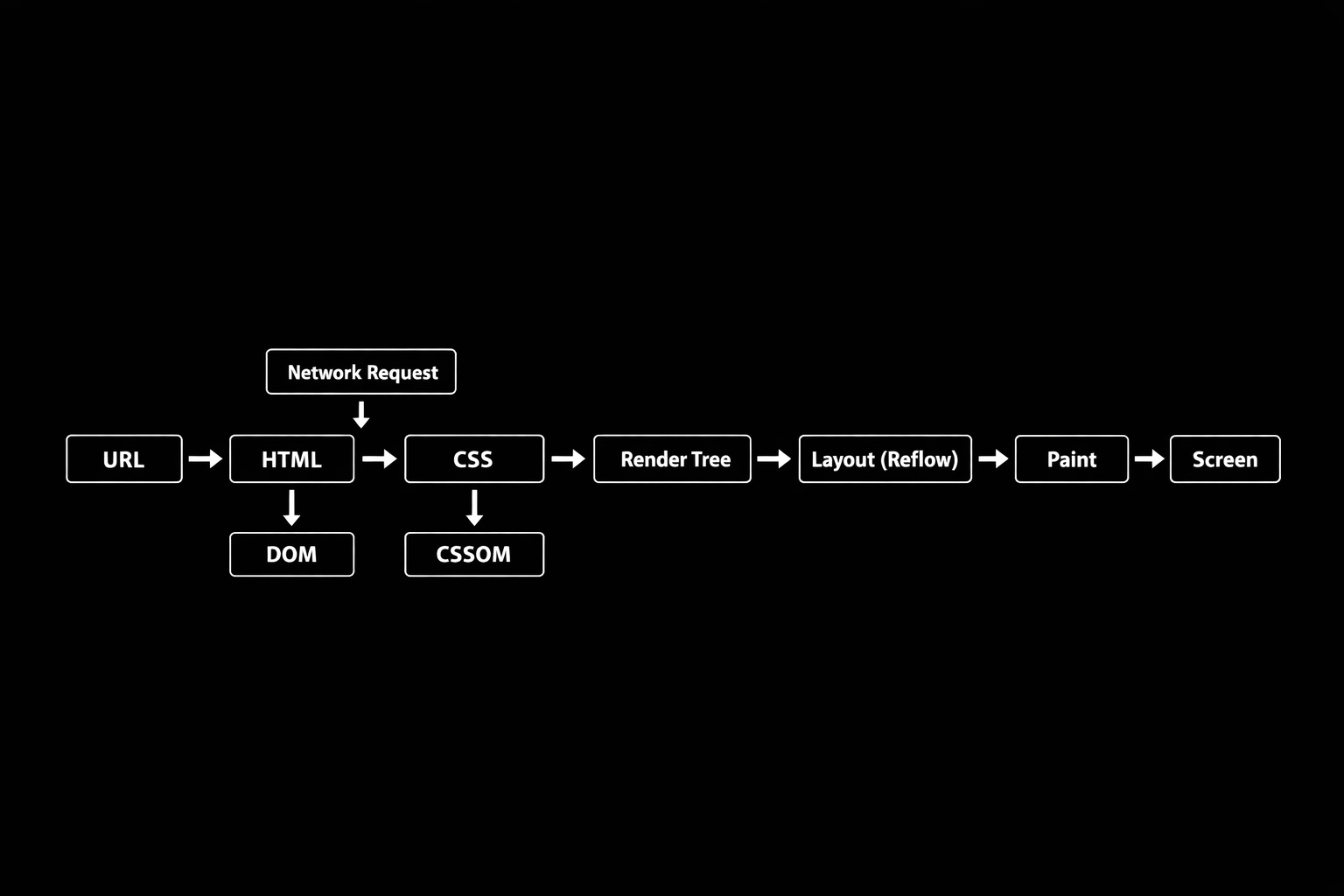
Step 1: You Type a URL and Press Enter
Let’s follow the real flow.
You type
https://example.comBrowser checks:
- Is this page cached? (meaning : is the A record present in local store )
If not:
- It asks DNS: “Where is this website?”
DNS resolver returns an IP address
Browser connects to the server
Browser sends an HTTP request: GET /index.html
Server responds with HTML
Step 2: HTML Parsing → DOM Creation
As soon as HTML starts arriving, the browser does not wait for the full file.
It starts reading line by line.
What is Parsing?
Parsing means: Breaking text into meaningful structure.
DOM (Document Object Model)
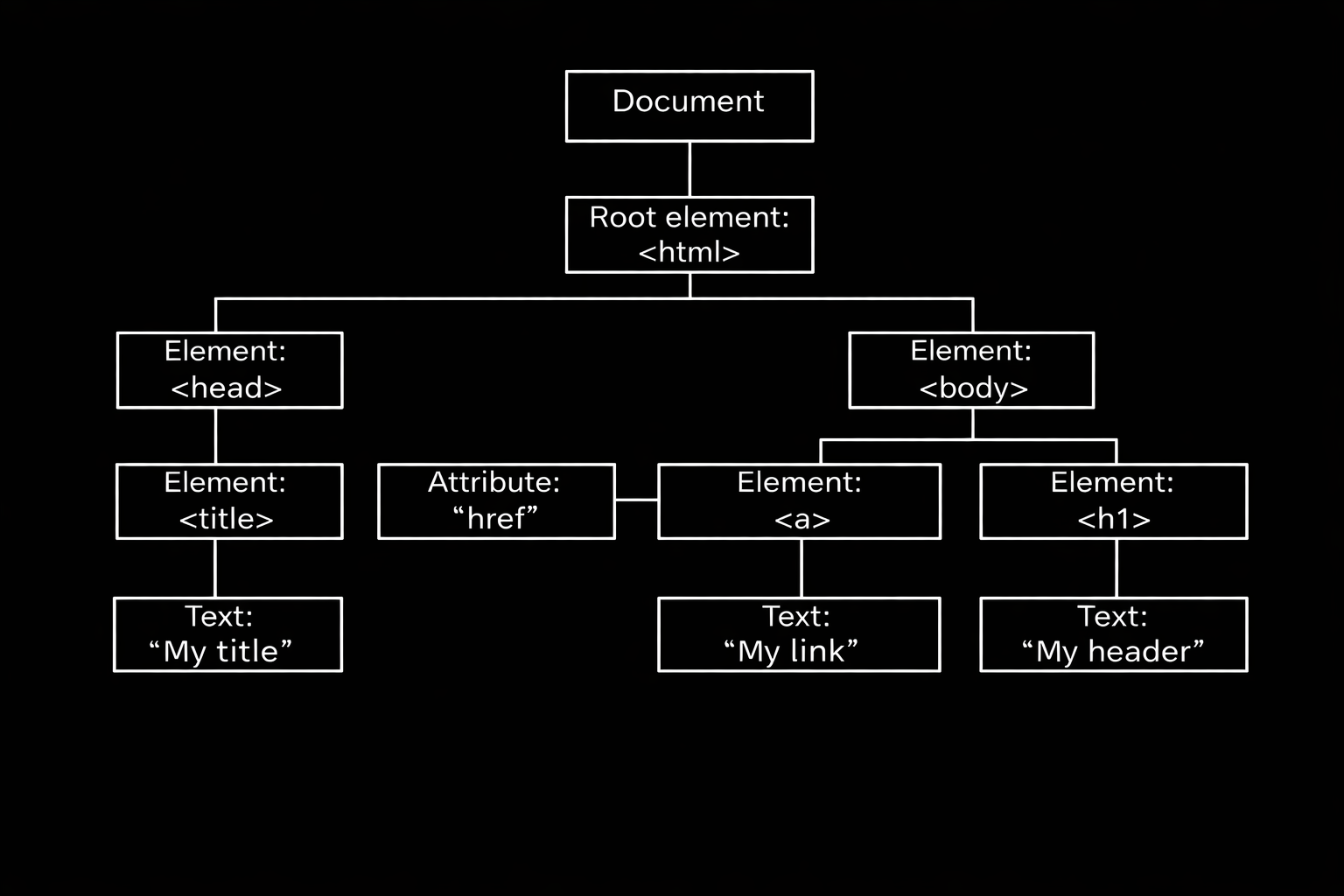
The browser converts HTML into a tree structure called the DOM.
Example HTML:
<!DOCTYPE html>
<html>

<head>
    <title>My title</title>
</head>

<body>
    <a href="#">My link</a>
    <h1>My header</h1>
</body>

</html>
DOM Tree:
Step 3: CSS Parsing → CSSOM Creation
Now CSS comes into play.
Example CSS:
h1 {
  color: blue;
}
The browser parses CSS and creates the CSSOM
(CSS Object Model)
CSSOM stores:
Which styles exist
How they cascade
Which rules apply to which elements
Think of CSSOM as: A rulebook that tells the browser how things should look
Step 4: DOM + CSSOM → Render Tree
Now the browser combines both worlds.
DOM → structure
CSSOM → styling
Together they form the Render Tree.
Important:
Only visible elements go into the render tree
display: noneelements are skipped
Render Tree knows:
What to show
How it should look
Step 5: Layout (Reflow)
Now the browser asks: “Where should everything go?”
Layout decides:
Width and height of elements
Position on the screen
Spacing, margins, padding
This is why changing CSS like width or margin can be expensive — it may trigger reflow.
Step 6: Paint → Display
Finally…
Browser paints pixels
Text, colors, borders, images
Layers are combined
Page appears on your screen
Boom — website loaded!
All this happens in milliseconds.
4. What About JavaScript?
JavaScript exists because it can:
Modify the DOM
Change styles
Trigger reflow and repaint
<script> can pause HTML parsing
(unless async or defer is used).
Why?
Because the browser must download and execute JS before continuing.
JS runs on the main thread, so heavy scripts can slow down rendering.
5. Parsing Explained with a Simple Example
Take this math expression:
(7 + 3) * (5 - 2)
It becomes a tree:
        *
      /   \
     +     -
    7 3   5 2
HTML parsing works the same way:
Break the text.
Understand the structure.
Build a tree.
DOM and CSSOM are just trees built from code.
6. Final Summary:
We don’t need to memorize everything.
Just remember the flow:
Fetch (Browser fetches the file using HTTP with the help of DNS)
→ Parse (HTML → DOM, CSS → CSSOM)
→ Render (Create Render Tree → Reflow → Paint)
→ Display (Final output appears on the screen)


